How to Make a Fortnite YouTube Thumbnail with Transparent Skin Renders
A step-by-step guide to a clean, eye-catching Fortnite thumbnail built from free 4K transparent renders and Blender 3D models of the skins.
Why transparent renders help
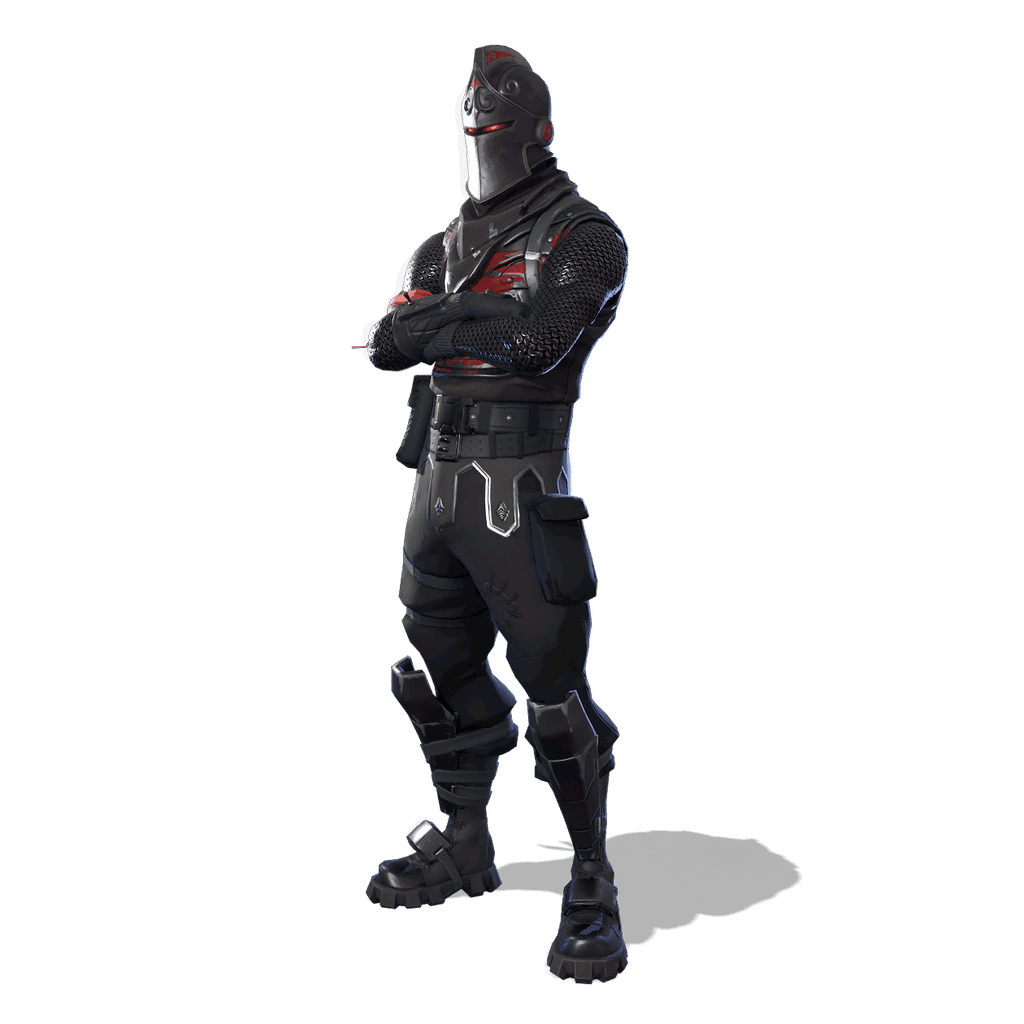
Most of a thumbnail's punch comes from the character. A render with a transparent background drops onto any scene without cutting the skin out by hand, so you spend your time on the composition instead of on a selection tool.
Every render on FortniteRenders is a 4K PNG. That leaves room to crop tight on the face or the upper body and still stay sharp at YouTube's 1280×720 thumbnail size.
Want a pose of your own? Each rendered skin also comes as a rigged Blender 3D model that you can download from the same page.
Step 1: pick the skin and its style
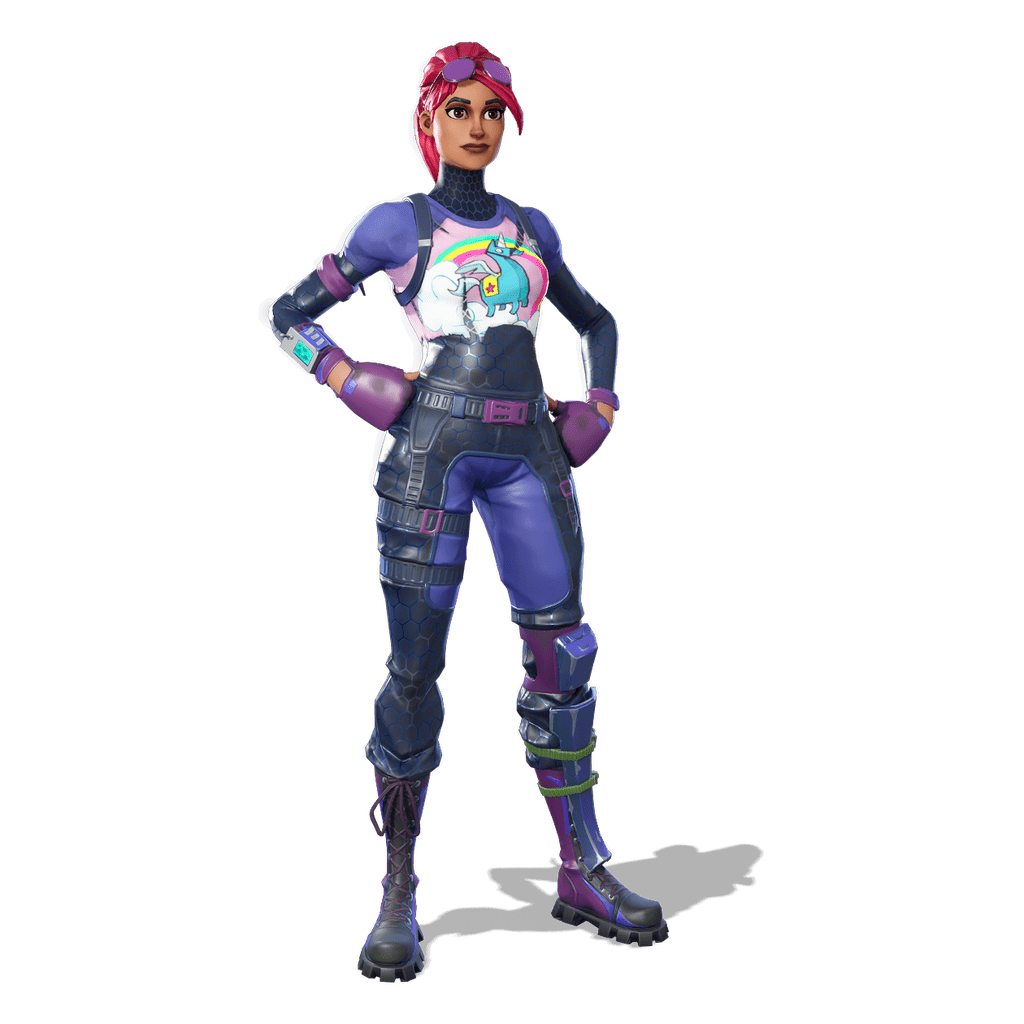
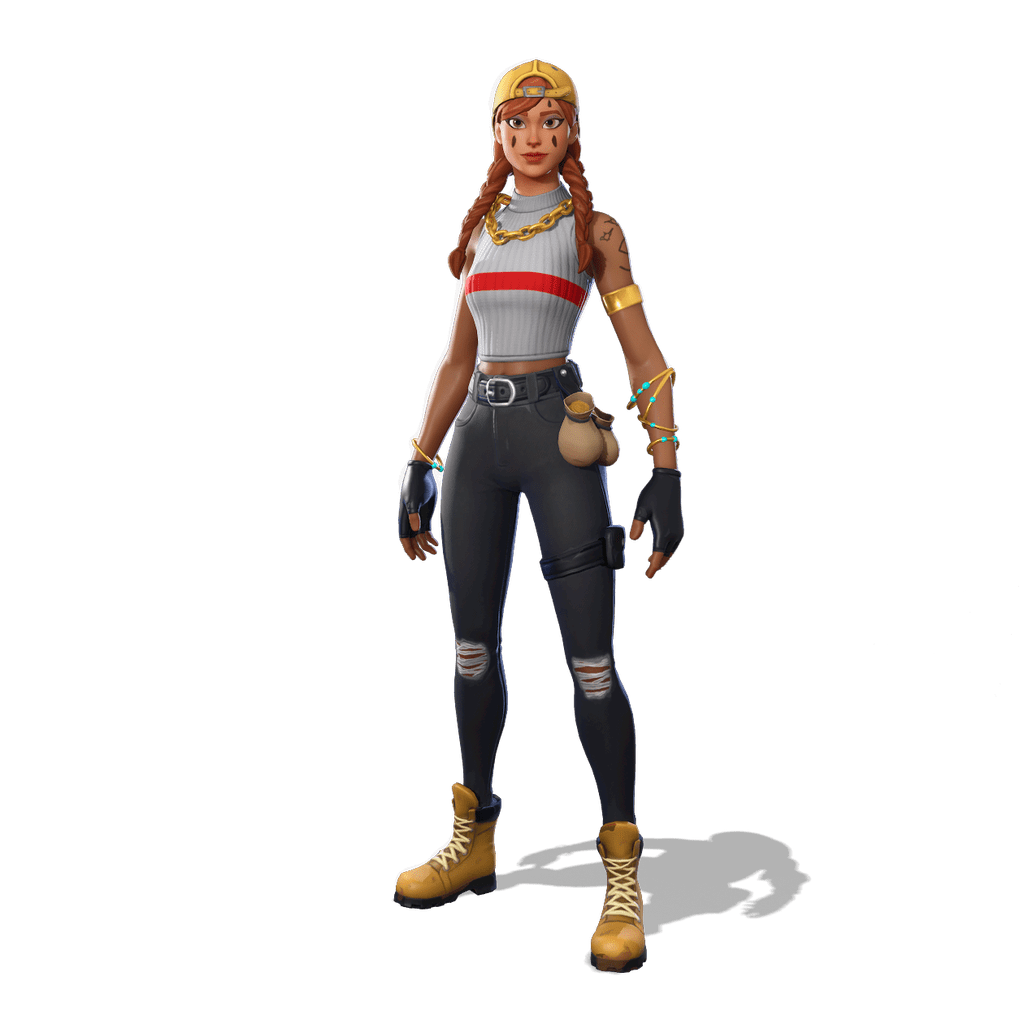
Search the catalog for the outfit you want and open its page. When the skin has several styles, choose one in the style selector: each style has its own render.
Click Download PNG to save the transparent render, or Download .BLEND to get the rigged 3D model for Blender. Keep the original files and work on copies, so you can always go back to full resolution.
Step 2: set up the canvas and background
Create a 1280×720 canvas in your editor of choice (Photopea, GIMP, Photoshop or Canva all work). YouTube recommends this size, accepts JPG, GIF and PNG files, and limits custom thumbnails to 2 MB.
Use a simple background with a strong color that contrasts with the skin: a gradient, a blurred in-game screenshot or a flat color with a light texture. Leave one side of the canvas fairly empty for your text.
Step 3: place the character
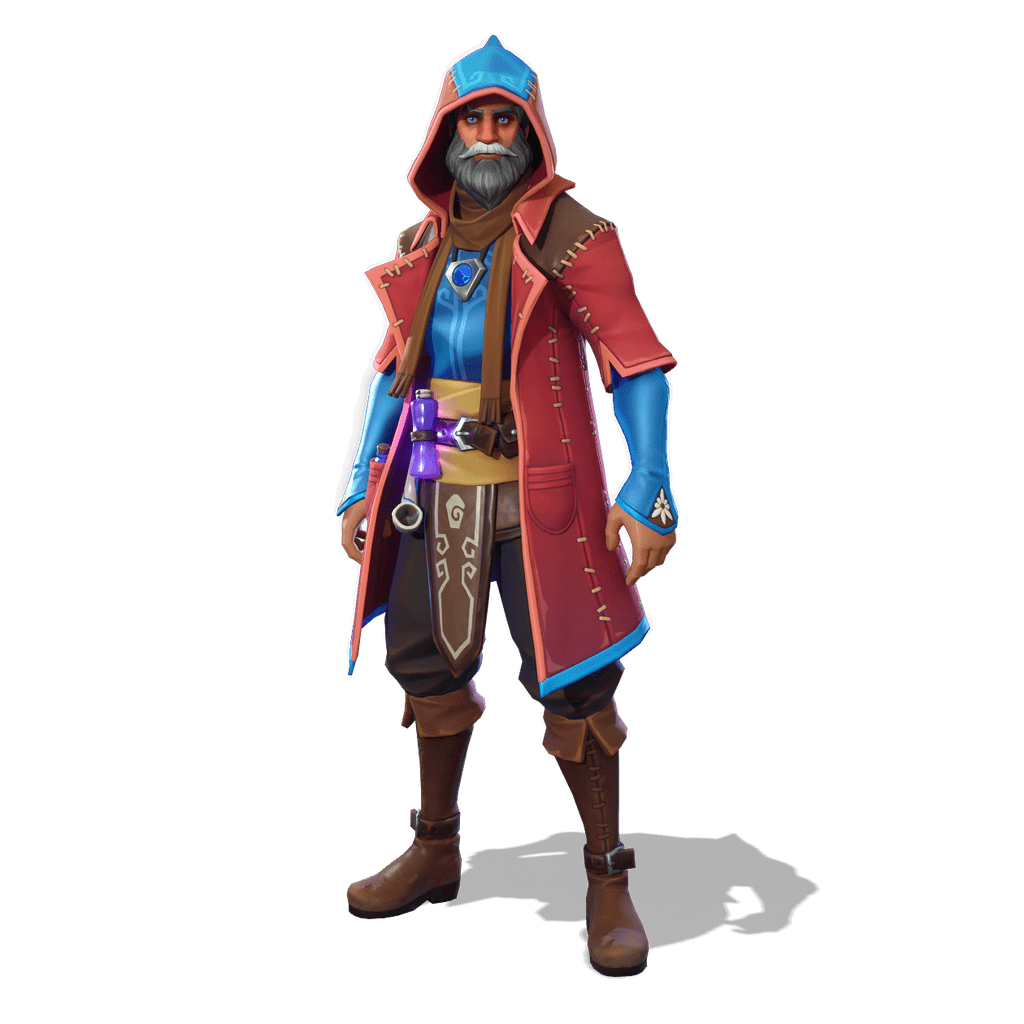
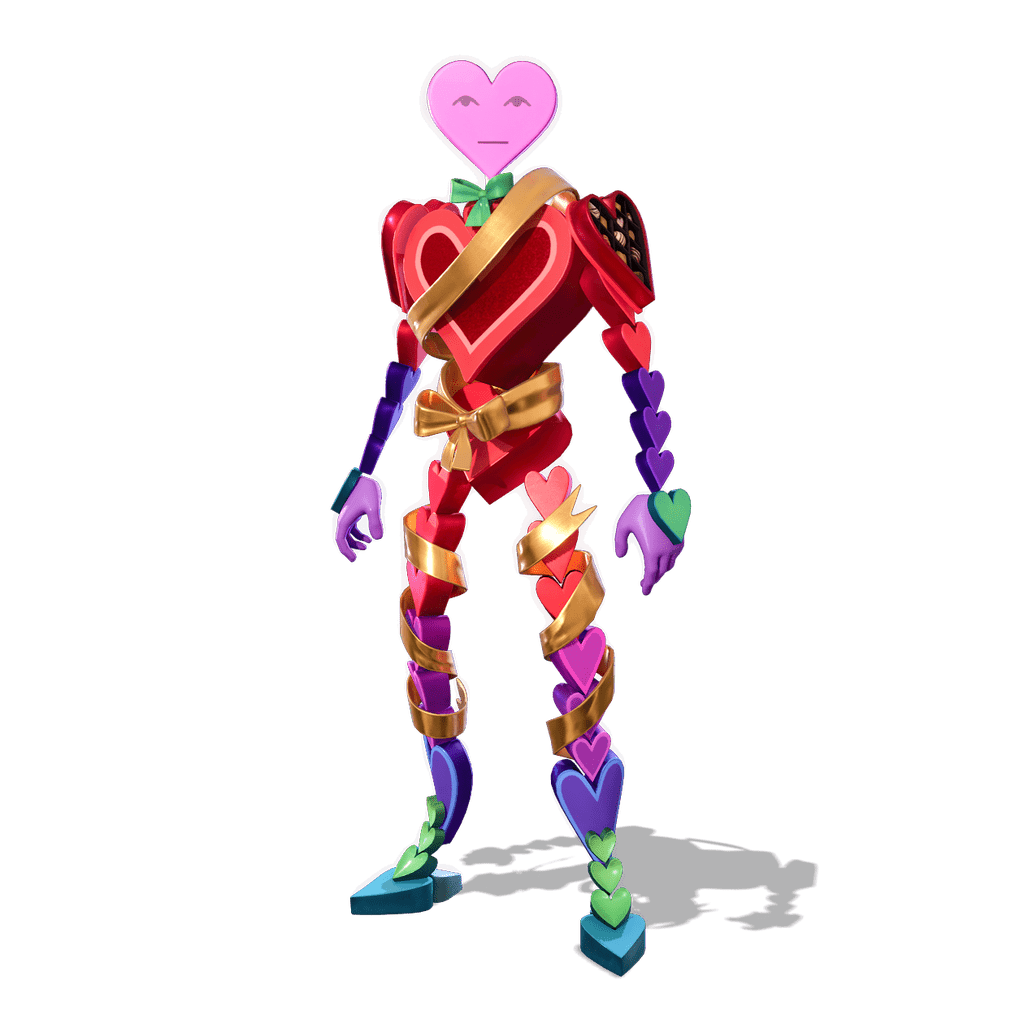
Drop the PNG on its own layer and scale it up until the head and shoulders fill a large part of the frame. Big, close characters read much better than small full-body ones on a phone screen.
Separate the skin from the background with a thin white or colored outline, an outer glow or a soft shadow. A colored light on one edge of the character, matching the background, makes the render feel part of the scene.
Step 4: add text and check it small
Keep the text to two to four words in a heavy, condensed font with a dark outline or shadow, and avoid placing it in the bottom-right corner where YouTube shows the video length.
Before uploading, zoom out until the thumbnail is about as big as it appears on a phone. If the character and the words are still readable, it is ready. Export it as a JPG or PNG under 2 MB.
Go further with the Blender model
The .blend file is the full 3D outfit, rigged and textured, ready to open in Blender. You choose the pose, the camera angle and the lighting, so your thumbnail shows a version of the skin that nobody else has.
Pose the character by rotating the bones of its rig, frame it with the camera, then render a PNG with a transparent background (Film > Transparent in the render settings) at the size you need. That image then goes into your thumbnail exactly like a regular render.
Missing a skin?
Renders are added every day. If the outfit you need is not rendered yet, vote for it on its page: the most requested skins are made first, and you can leave your email to get one message when it is ready.
Download them for your thumbnails
4K transparent PNGs and Blender 3D models (.blend), free for your thumbnails and illustrations.